Showing posts with label Amberly Berendson. Show all posts

Sunday, November 6, 2022

No Scraps Forum "Rain Showers"


Rain Showers


This tutorial was written by me, VCC, on November 06, 2022 using my own ideas. Any resemblance to others is coincidental and accidental. This tutorial assumes you have a working knowledge of psp and is written in PSPX.


Supplies:

"High and Dry" tube by Lucia Heffernan - this is a FTU artist who granted permission to use their art to Angels Design forum. PLEASE use a suitable tube that you have a license/permission for. DO NOT use this artists work unless you have permission.

Rain animation by Simone

Wording/Quote of choice


FILTERS:

Kiwi's Oelfilter_Zig-Zack

VM Distortion_Tiles A Go-Go

Mura's Meister_Copies

AAA Frames_Texture Frame


FONTS:

Plaster Of Paris

Abbreviations:

DS_Drop Shadow

ANL_Add New Layer

EC_Eye Candy

GG_Gradient Glow

AS_Animation Shop

C/P_Copy and Paste

FF_Flood Fill

Ctrl+A_Select All

Ctrl+C_Copy

Ctrl+V_Paste

Ctrl+D_De-select

Ctrl+E_Paste Into Selected Frame/s


Open blank 600x300 canvas

C/P tube

Mura's Meister_Copies_Wallpaper Rotate_Default

Adjust_Blur_Motion Blur_60_100

Repeat Blur

Effects_Edge Effects_Enhance

Duplicate this layer

Kiwi Oelfilter_Zig-Zack_56_80_128_128

**NOTE: This filter is notoriously cranky, so you may have to adjust the settings to your liking**

VM Distortion_Tiles a GoGo_32_0_207_163

Blend Mode_Soft Light

Selection Tool

Select random areas of the GoGo layer


Delete

Highlight the bottom blur layer

Promote Selection To Layer

Ctrl+D

Add Noise_Uniform 35

Rectangle Shape Tool_Stroke 0_Fill White

Draw a narrow strip across tag going past the edges a ways

Convert to raster

Effects_Distortion Effects_Wave_5_45_5_45_Transparent

Duplicate

Move down slightly as shown

Merge wave lines together

Blend Mode_Soft Light

C/P tube placing as shown

EC5_Impact_Perspective Shadow_Drop Shadow_187_24.19_97_26.21_Black_Mask Selection

Crop to 600x300

Copy Merged

Paste as new layer to the top

AAA Frames_Texture frame_Change top number to 10

Select All_Contract 11_Delete_Select none

Add wording of choice and all correct copyright/license information

Opacity of these layers_65

Name_Plaster Of Paris_22_White

Opacity_65

Hide the name, wording, credits, and frame

Copy Merged

AS:

Paste as new animation

Ctrl+L until you have 15 frames

Ctrl+A

Open Rain animation by Simone

Resize by 50%

Ctrl+A

Ctrl+M

Ctrl+C

Highlight your tag

Ctrl+A

Ctrl+E placing to the left

Click mouse button to set

Ctrl+E place to the right covering tag

Click mouse to set

Back to PSP:

Open frame layer

Copy

AS_Paste as new animation

Ctrl+C

Be sure the "Propagate Paste" button in tool bar is clicked (looks like 3 sheets of paper)

Highlight tag

Roll mouse to enlarge slightly

Ctrl+A

Ctrl+E

Click mouse to set (if you enlarged slightly, it should automatically be centered)

PSP:

One at a time, copy the name, credits, and wording layers

*AS_Paste each as new animation

Ctrl+C

Highlight tag

Ctrl+A

Ctrl+E

Place each where you like

Click mouse to set*

Repeat from * to * for each wording, credit, and name layer

View Animation

If happy, save!


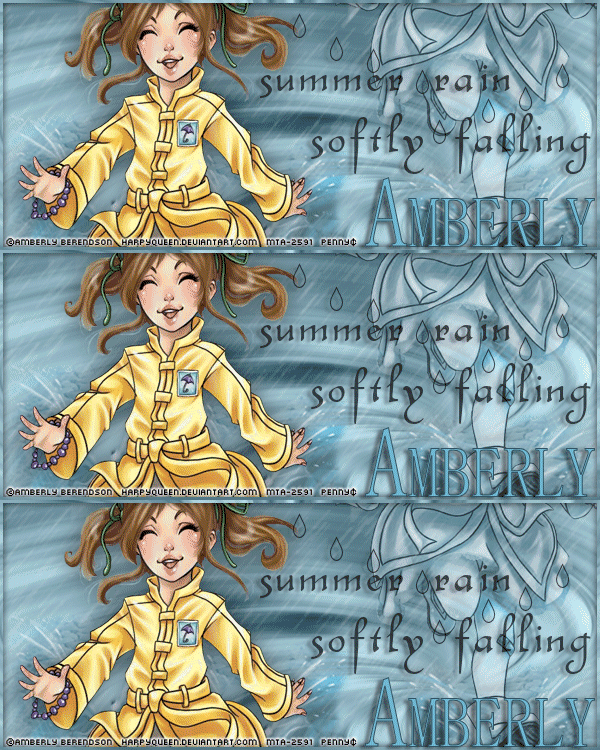
This set was made using the wonderful art of Amberly Berendson.

Tube/license currently available at Digital Art Heaven


Tuesday, February 19, 2013

No Scraps - Splish Splashin' Fun

I made this tag for a challenge in The Zone Groups forum and it was too cute not to tut!!

Splish Splashin’ Fun


This tutorial was written by me on February 19, 2013, using my own ideas. Any resemblance to others is coincidental and accidental. This tutorial assumes you have a working knowledge of psp and is written in PSPX.
Please leave some love when downloading supplies. The artists/creators work hard to make/share their work with us, so let's be appreciative. Please use all correct copyright information and follow all TOU’s. Let’s give credit where credit is due.
As always, tutorials are only a guideline. If you don't have the exact supplies, use ones you have or ones you choose.


Supplies:
“The Rain” tube by Amberly Berendson available at MTA
Word Art of choice about rain (Sorry, the one I used is not available for download. It was made by Dream Silk Design for a forum challenge)
Mura’s Meister_Copies
VDL Adrenaline_Snowflake
Font_SimSun-ExtB


Abbreviations:
EC = Eye Candy
GG = Gradient Glow
DS = Drop Shadow
C/P = Copy and Paste
FF = Flood Fill
ANL = Add New Layer
AS = Animation Shop


Open blank 600x250 canvas
C/P tube_Duplicate
On original_Mura’s Copies_Wallpaper Rotate_Default
Blur_Radial Blur_Twirl_50_30_50_50_5_Elliptical checked
ANL below blur layer_FF #a8ccda
Back on Blur layer_change blend mode to Luminance L
Merge FF and blur layer_Duplicate_Flip_Mirror_move to top
Select all_Contract 3_Delete_Select none_DS_0_0_100_10_Black
Move tube to the left and position
Duplicate tube_Mirror_move to the right and position as shown
Blend_Luminance and lower opacity to about 68
~*~*This tube came with an image that has a water puddle splash_If the tube you’re using doesn’t have one, skip this part:
C/P image_Line up with the mirrored tube on right_erase everything except the splash
Duplicate splash_mirror_Move behind original tube on left (I had to duplicate and mirror again)
Change blend mode of splash layers to Luminance and lower opacity to about 68~*~*
C/P word art_DS_2_-5_50_5_Black (or using font of choice, type out a saying about rain)
Lower opacity to 70
ANL between tube layers (right tube and all splash layers should be below this layer)
Duplicate for 3 blank layers
Highlight top blank layer
VDL Adrenaline_Snowflakes_73_0_10_100_0_Basic Snow_Random Seed 400
Repeat for other 2 blank layers changing random seed to 600 and 800
On each snow layer apply the following_Blur_Motion Blur_220_51
Close bottom 2 “rain” layers
DS main tube_0_0_50_25_Black
Add all correct copyright/license information
Add name_SimSun-ExtB_100_stroke 1 #325664_ fill #72b8d4
Highlight all letters of name except the first initial_change size to 72
DS_2_-5_50_5_Black
Highlight background layer_Crop to layer opaque

Avatar: open blank 150x150 canvas
Crop the water drops from the word art and paste as new layer
Type the first letter of your name, same settings as for sig tag changing size to 120
DS same settings and save

ANIMATING
Main sig tag_Copy merged_paste as new animation in AS
Back to PSP_close top rain layer, open middle rain layer
Copy merged_paste after frame in AS
Repeat for the last rain layer
~*~* Be sure to C/P from top to bottom in order or the rain will be jumpy~*~*
Check your animation and if it looks good, save and enjoy!!